- Create accessible PowerPoint slides and prepare what you plan to say about each one. Divide your lecture into sub-topics to keep the videos short and easier to upload.*
- To reduce the size of your file, compress any images:
- Reduce the file size of a picture in Microsoft Office
- Record a slide show with narration and slide timings.
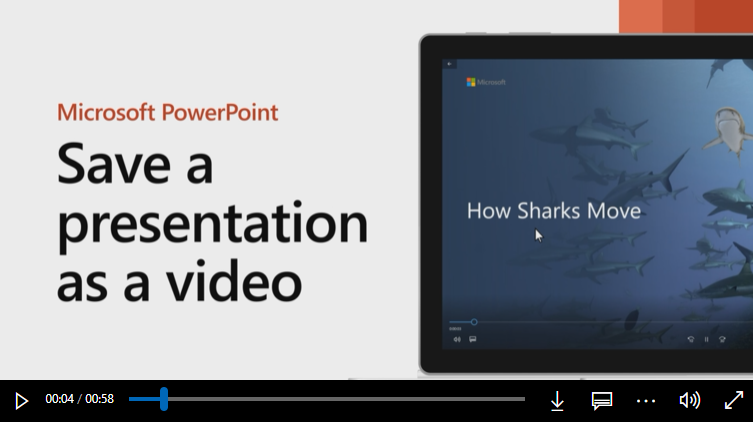
- PowerPoint files with narration are usually too large to upload to Canvas directly. Even if you can upload your PowerPoint file to Canvas, your students might not be able to play it. Therefore, the next step is to save your narrated PowerPoint as a video.
- Save a presentation as a movie file or MP4.
- Choose one of the lower resolution options. Depending what version of PowerPoint you have, this might be Standard, HD, or Internet Quality.
- PowerPoint 2016 for Mac doesn’t support saving in a video format. Other versions of PowerPoint for macOS (2011, 2019, and the Office 365 subscription – but not the online version of PowerPoint) do support this feature. As a CSU student, you have free access to Office 365 from Software Downloads.
- Upload your video to Echo for use in Canvas.
- Navigate to your Echo Library (log into https://echo360.org/home with your CSU credentials), and click the Create button. In the drop down, select Upload Media, then select your PowerPoint file from your computer.
- The video will process (depending on the length of the video, this can be 15 minutes up to 1 hour), but it can still be embedded or linked to in Canvas. The embed/link will become active automatically when the video has finished processing.
- Link to or embed the video into Canvas
- Open the Canvas page editor where you would like to embed or link to your video
- To embed a video: On a Canvas page with the page editor open, navigate to the page editor toolbar, and click the App button (which looks like an electrical cord), then in the App dropdown, click Echo360. If Echo360 is not immediately available in this list, click View All and select Echo360. From the Echo360 menu, select Launch Media Picker (under Choose Existing Content), select the video(s) you would like to insert on the page and click Next. Adjust the settings to your liking and click Embed, the video is now on the Canvas page.
- To link to a video: click on the video in your Echo Library and click Share, then click Link, and click Create Link. Copy the hyperlink to paste onto the Canvas page. After you paste the hyperlink onto the page, click on the link and click Link Option, in the Text field, provide the name of the video, then click Done.
- Open the Canvas page editor where you would like to embed or link to your video
- Review/edit closed captions in Echo
- Note, the transcript file for a video will generate about 30 minutes after the video finishes processing.
- Navigate to your Echo Library (log into https://echo360.org/home with your CSU credentials), click on the video to access the video Details page. In the Details page click “Edit Transcript” to access the transcript editor (captions and transcripts in Echo use the same file)
- In the transcript editor click the Edit Transcript button. You can now make edits to the transcript by clicking on the line you wish to edit and entering the text you want to appear on the screen at the given timestamp. Once you are finished editing, click “Save As New Version”. You can always default to the original version of the transcript if you have made an error and wish to start over by clicking on the Version drop down menu and selecting Original.
- Once you have made your edits and save, click the Apply to CC button to add your transcript as closed captions. This button must be clicked to apply the edits.
*Students can use these same directions to record and share PowerPoint presentations, these instructions will also work for Canvas discussion posts.